Welcome to Reveal-AI. This page walks you through how to start scanning, what your score means, how tokens and billing work, and what to do if something doesn’t look right.
Getting started
- Create an account, sign in, then choose a payment plan. Once you have a plan selected, navigate to the Scan page.
- Choose what you want to analyze: a link (URL), a file upload, or text/code.
- Run the scan. You’ll see an overall score and a breakdown by signals.
- You can revisit results for up to 5 days from your Account page if you want to see past scan results.
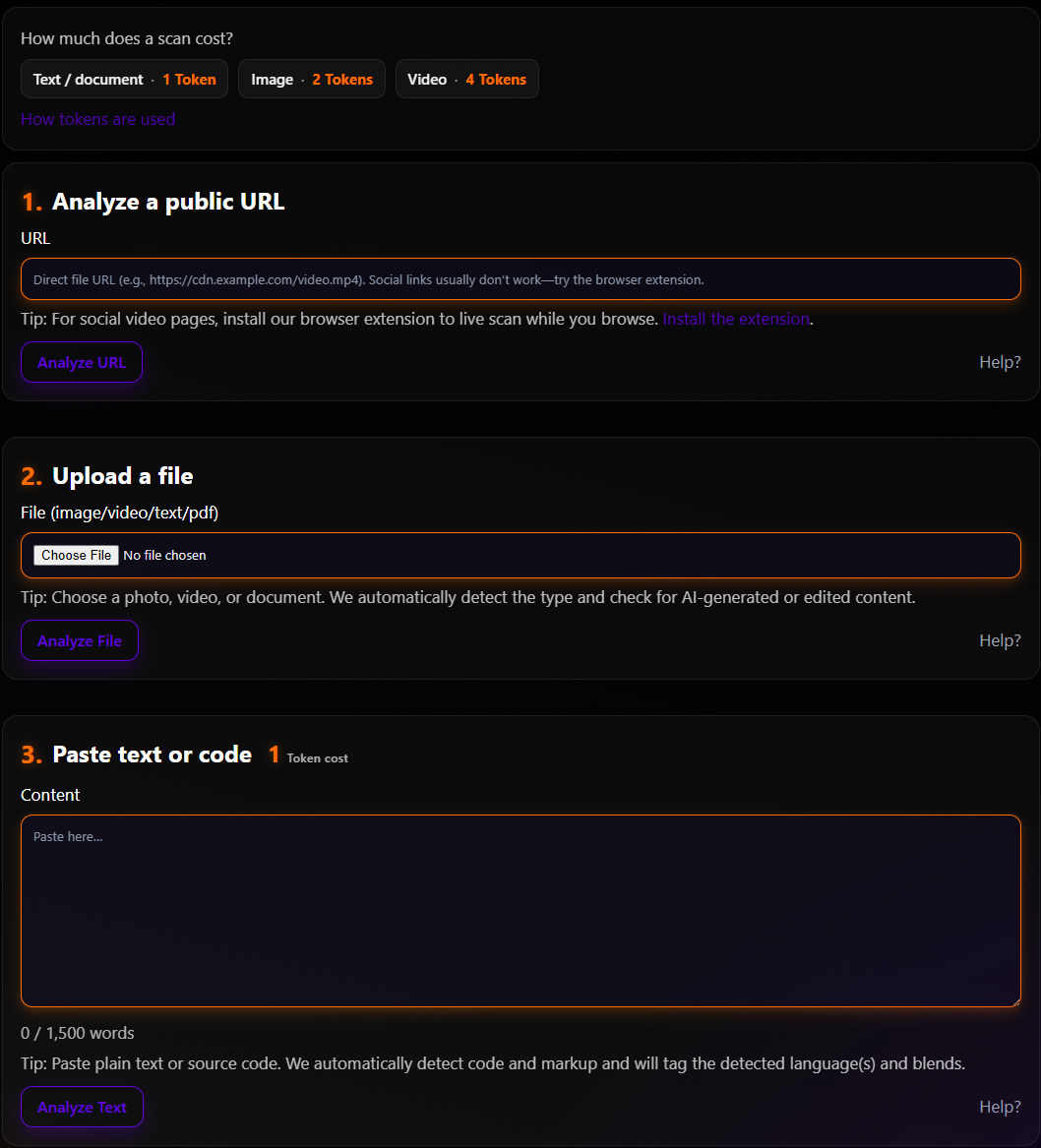
Tip: You can paste a URL and press Enter to jump straight to analysis.
How Reveal-AI works
Reveal looks for tell‑tale signs that media or text may have been created by AI or manipulated. We combine multiple signals—like compression fingerprints, frame consistency, and metadata—for images and video, and style/structure patterns for text and code. Each signal contributes to an overall confidence score.
- Checks for visual patterns common in AI‑generated content.
- Looks at frame consistency (for video) and edit traces.
- Examines metadata when available.
- Analyzes writing style and structure versus typical AI output.
- For code, looks at repetition, structure, and known AI signatures.
- Flags low‑confidence cases to avoid over‑claiming.
No detector is perfect. Treat the score as one piece of evidence alongside your own judgment and other sources.
Scanning options
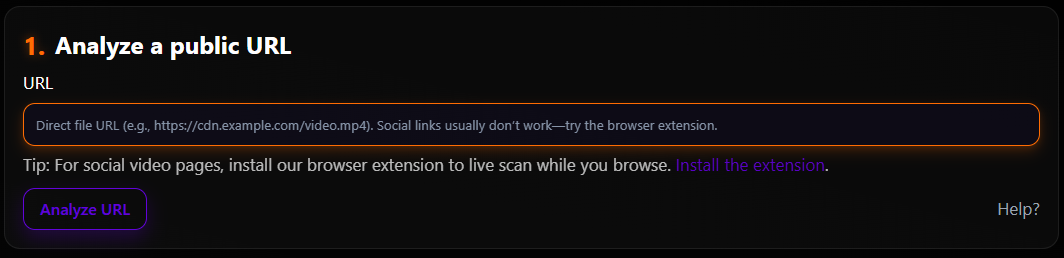
Paste a direct link to an image or video (for social sites, right‑click the media and choose “Copy image address” or open the media in a new tab first). Then click Analyze URL.
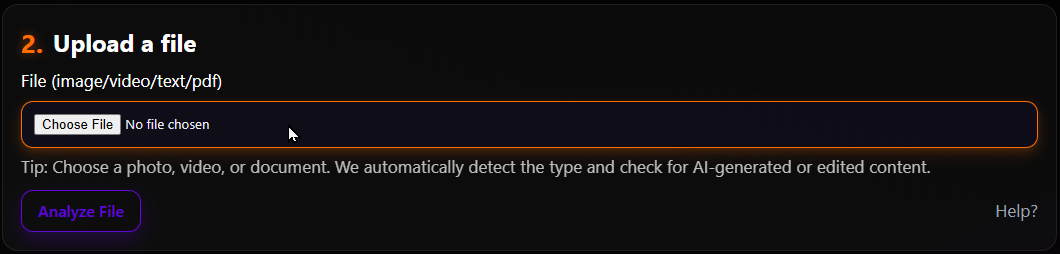
Upload images, short videos, or documents (txt/pdf). We scan safely and delete the original files after processing. Click Analyze File to start.
Paste your text (or upload a txt/pdf). We auto detect for txt or code, Then click Analyze Text.
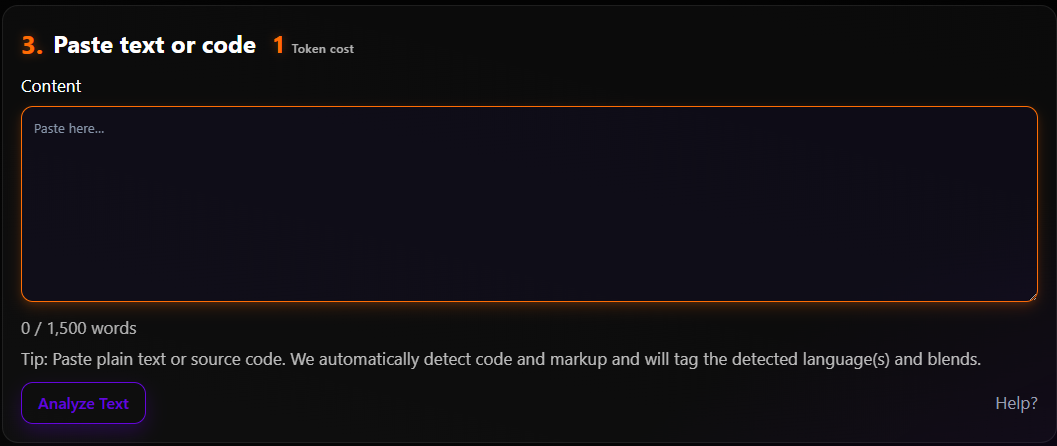
Limits: very large files may be rejected; for PDFs we analyze extracted text. Some websites block direct downloads; if a URL fails, try saving the file and uploading.
Browser extension
The browser extension helps you scan what you’re looking at on a webpage—especially on sites where direct media URLs are hard to copy.
- Install the Reveal extension from the store (link coming soon).
- Pin it to your toolbar for quick access.
- Sign in when prompted so scans can be credited to your account.
- Open a page with an image or video.
- Click the extension to capture what’s visible.
- Open your results in a new tab when the scan finishes.
Some video players are DRM/privacy‑protected and can’t be captured by extensions. If that happens, try scanning a direct public file URL (if available) or use the Scan page with an uploaded file.
Token consumption
Each scan consumes tokens. The typical costs are:
- Text or Code: Cost 1 token per scan.
- Images: Cost 2 tokens per scan.
- Video's: Cost 4 tokens per scan.
Using URL or Upload scans automatically change the token cost based on the media being scanned. You can see your remaining tokens on the Scan page and on your Billing page. If you run out, you can either purchase a token pack, wait for your subscription allowance to reset, or enable overage with your subscription plan, or change to a Pay-as-you-go for metered usage.
Understanding your score
The score runs from 0% to 100% and represents how strongly our current detectors match patterns associated with AI generation or heavy AI-assisted edits.
We currently show these user-facing bands:
- 0–15%: very likely human-made
- 15–35%: likely human-made
- 35–60%: mixed signals (not enough evidence either way)
- 60–75%: likely AI/AI-edited
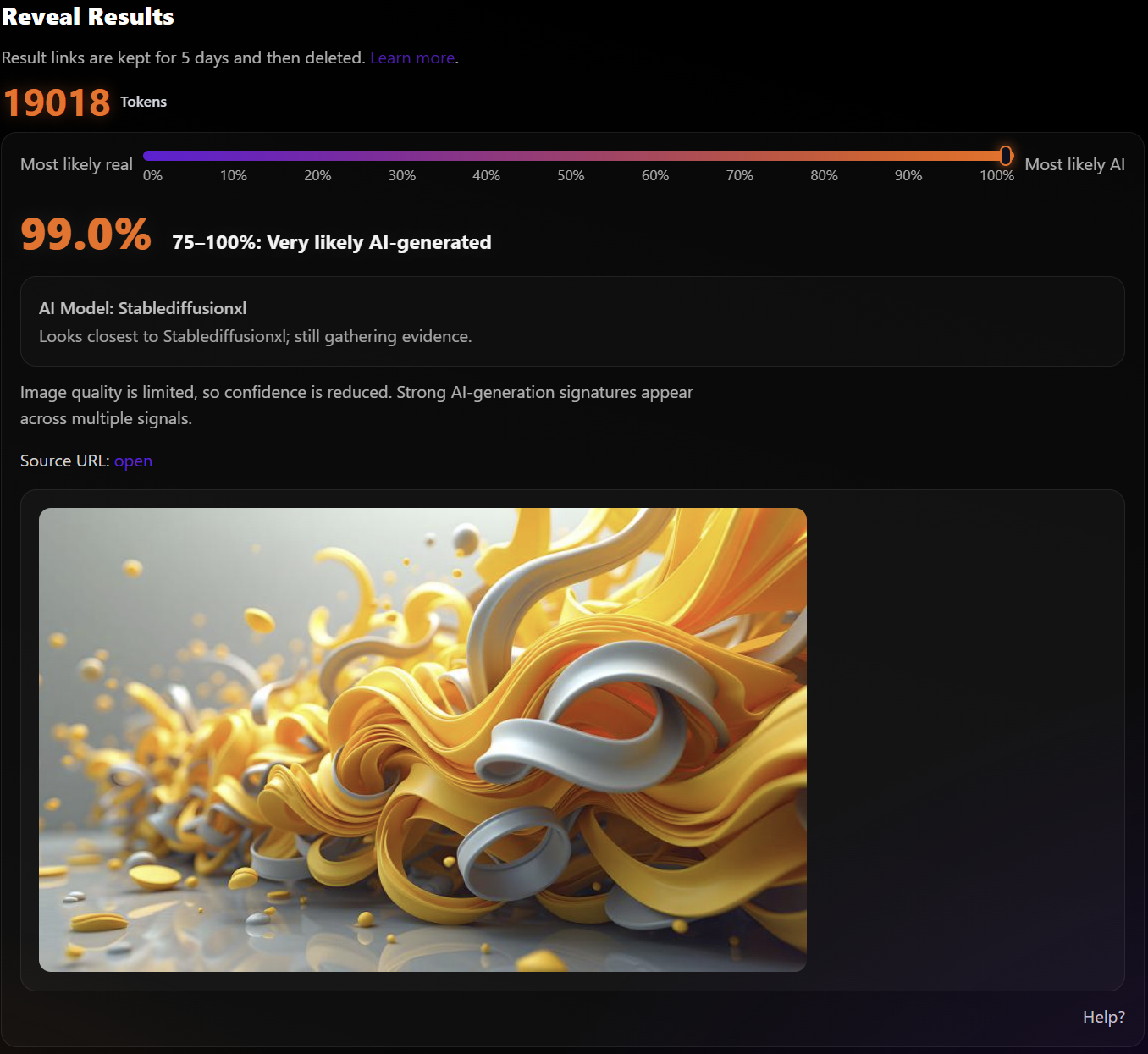
- 75–100%: very likely AI-generated
For mixed-signal results, it may be tempting to interpret the image as “partially AI.” In some cases it can be AI-assisted editing, but we can’t reliably quantify partial AI for every image. Instead, treat this band as: we don’t have a strong enough signal to make an informed decision either way. We continuously improve the system as we add training data and refine our models.
If you want to see the full set of outcome messages in one place, visit All score outcomes.
Here is an example output of a scan.
Payments & billing
Subscriptions include a monthly token allowance. When your cycle renews, your allowance refreshes. You can manage your plan from Billing.
If you enable overage, scans that exceed your allowance can continue and the extra usage is billed at the overage rate for your plan.
Buy tokens once and use them anytime. Packs are ideal if your usage is occasional or variable.
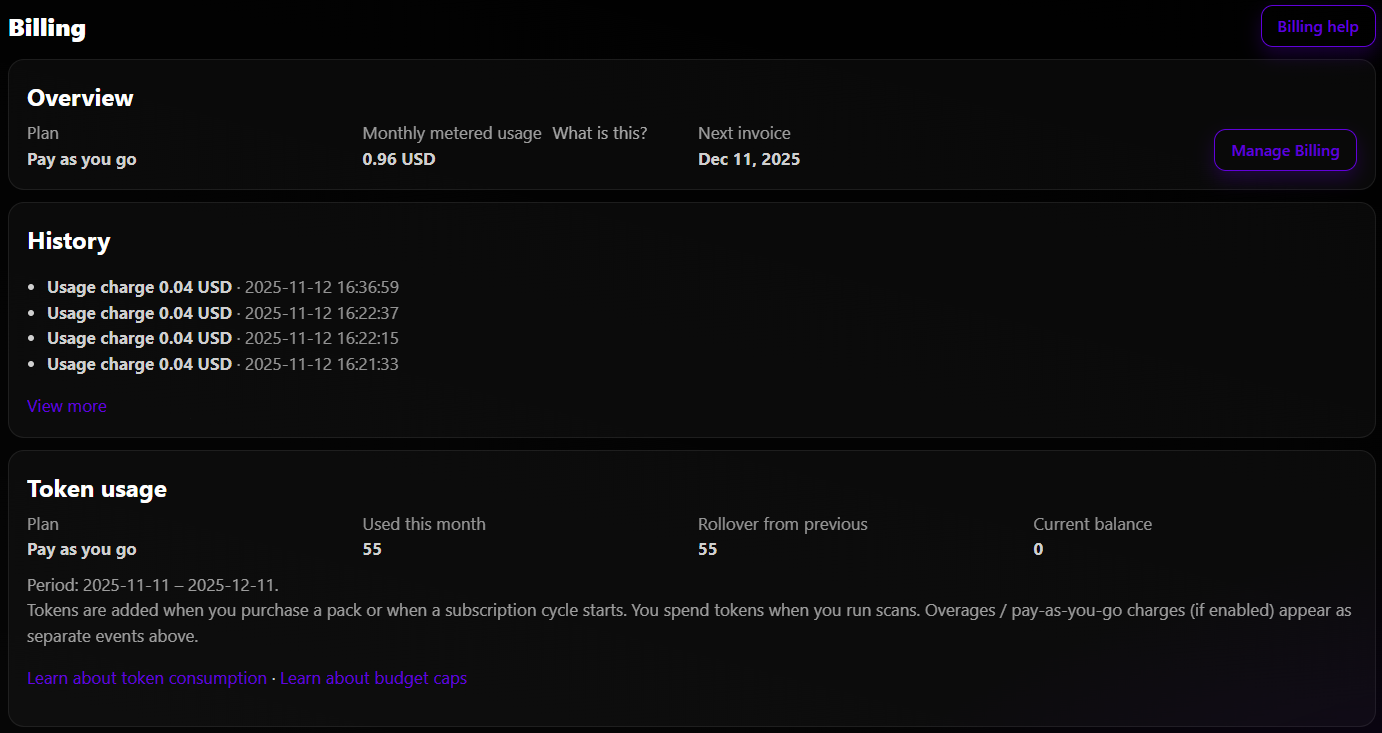
With PAYG, you don’t have a monthly allowance—each scan is billed at the current PAYG rate. Useful for teams who prefer pure usage‑based billing. Budget caps can be set so you can control your monthly spending. See Budget caps.
If you’re on a subscription plan, you can seamlessly upgrade or downgrade your tier from Billing at any time.
How it works: when you change tiers, your current subscription is canceled immediately, you’re charged the new subscription fee, and the new plan’s token allowance is added to your account right away.
Switching between PAYG and subscription: if you want to move from PAYG → subscription or subscription → PAYG, you’ll need to cancel your current plan first, then start the new one.
You may cancel a subscription at any time. Cancellation takes effect immediately, meaning we stop future subscription charges (you won’t be charged again at the end of the current billing cycle).
No refunds / no partial credits: Fees are non‑refundable and non‑creditable for partial periods or unused tokens, except where required by law.
Tokens after cancel: Any tokens already in your account (from your subscription allowance and/or token packs) remain available to scan with until they’re used up.
We use Stripe to process payments. You can manage your billing from Billing—the Manage Billing button takes you to Stripe’s billing portal.
Powered by
Budget caps
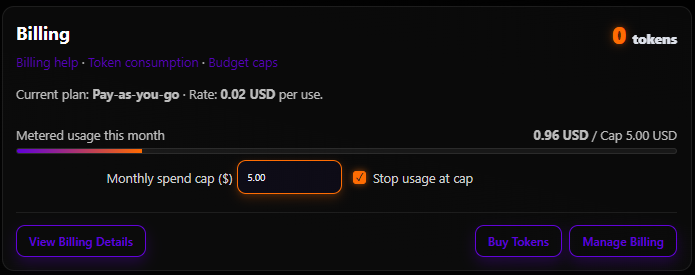
To prevent surprises, you can set a monthly budget cap for Subscriptions with Overage enabled or Pay as you go plans. When a scan would push you over that cap, we block it and explain why.
- Set your cap from the Billing page.
- Turn on “Stop at budget” if you want hard blocking at the cap.
- We only count the shortfall beyond your remaining tokens when projecting overage.
Troubleshooting
- URL won’t analyze: Some sites block direct downloads. Try opening the image in a new tab and copying the direct image address, or save and upload the file.
- Large video fails: Very large files may exceed limits. Try compressing the file or clipping the segment you want to analyze.
- Text too long: If pasting long text, shorten it or upload a PDF/txt file instead.
- Billing cap block: If you see a budget cap message, you can either purchase a token pack, increase your cap, or wait until next cycle.
- Result links expire: For privacy and storage reasons, your scan results are kept for a limited time (currently 5 days). Save what you need before the link expires. You can always re‑scan the same item later.
FAQ
- Do you store my files? No, We process uploads to run the analysis and then delete the originals. We do keep the raw image/video data for 5 days so you can revisit scans, everything is cleared after the 5 days. Your results are available in your account.
- Can I share a result? Yes—open a result and take a quick screen shot of the results page, since your results require you to be logged in we cannot share the results directly.
- Where can I change my plan? Go to Billing to manage subscriptions, PAYG, and token packs.
Still need help? Contact us via the form on the Contact page.